Every high-quality video generation begins with a structured prompt. The model processes natural language with deep semantic comprehension, meaning the more precisely you describe your intent, the more faithful the output. Think of your prompt as a shot list collapsed into a single paragraph.
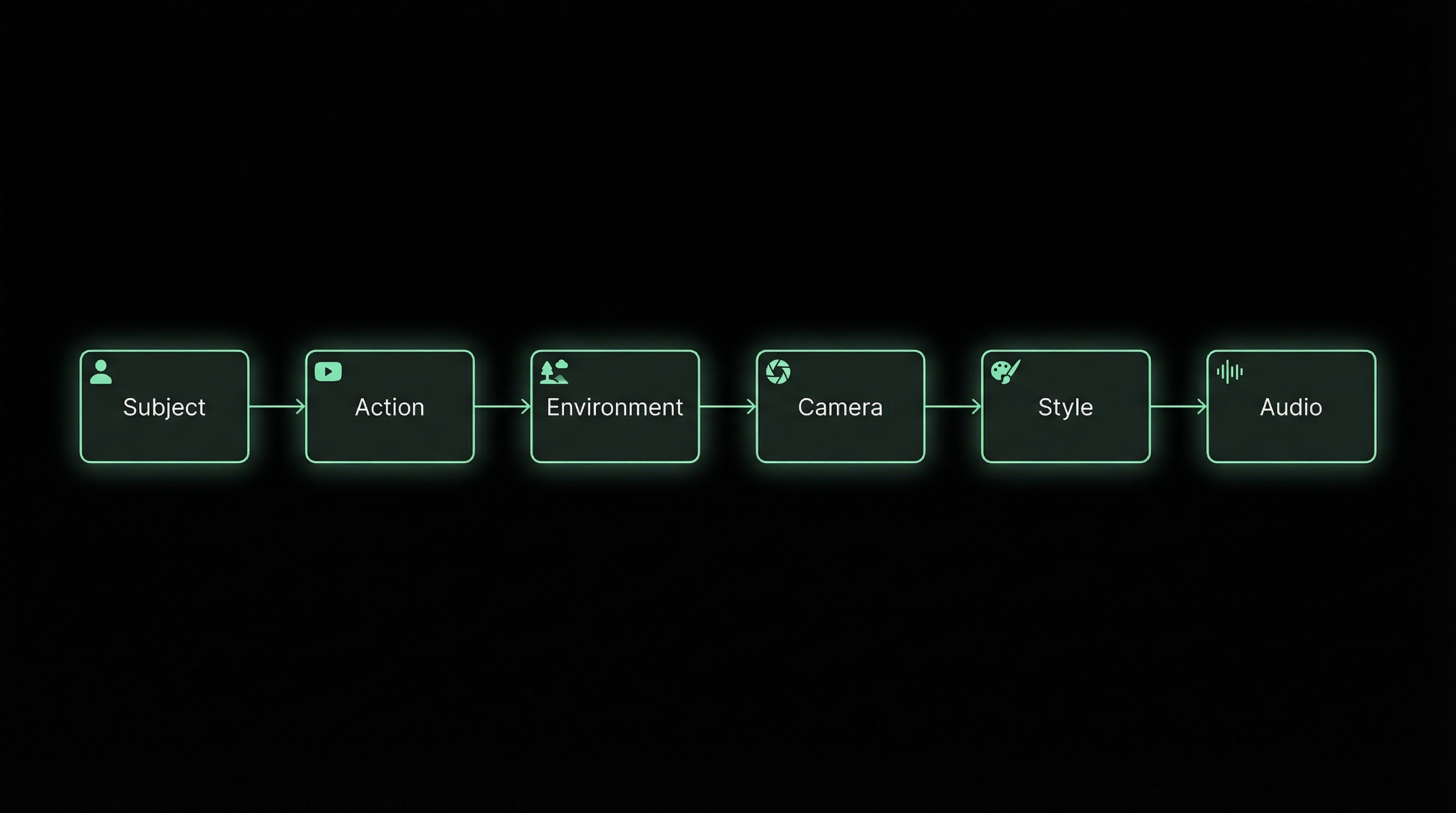
The six dimensions of a well-structured video prompt
Core Prompt Formula
Subject + Action + Environment + Camera Language + Visual Style + Sound Design
01
Subject + Action
The non-negotiable core. Define who is performing what. Without this, the model has no scene to build.
02
Environment + Style
Set the world. Describe the spatial context, lighting conditions, color temperature, and any overarching aesthetic direction.
03
Camera + Sound
Direct the lens and the audio field. Specify shot type, camera movement, transitions, and ambient or synchronized sound.
Writing Philosophy
The model excels at following the natural logic of language. Write your prompt the way a director gives instructions to a crew: start with the subject of the shot, describe the motion, set the scene, then layer in technical direction. The order of your words mirrors the priority of the output.
◆
Pro tip: Prompts that read like a mini-screenplay, with clear sequencing of events, produce significantly more coherent results than unstructured descriptions. Use temporal markers ("first," "then," "as the camera pulls back") to guide the model through multi-beat shots.
Location, weather, time of day, depth, background elements
High
Lighting
Direction, color temperature, contrast, volumetric effects
High
Camera
Shot size, movement (pan, dolly, crane), focal length, depth of field
High
Style
Photorealistic, cel-shaded, film grain, color grade, era
Medium
Audio
Ambient sound, dialogue, voiceover, music cues
Medium
02 — Multimodal Anchoring
Feeding Visual and Audio Assets
Text alone is powerful, but multimodal inputs let you lock in a precise baseline. By uploading reference images, audio clips, or video segments alongside your prompt, you give the model concrete anchors to build from. The model extracts core features from these assets and fuses them with your text instructions.
How text, image, audio, and video inputs converge into a single generation
Two Principles of Reference
A
Explicit Mapping
Always name your reference assets in the prompt. Say "Use the composition from Image 1" or "Match the pace of Video 2." Ambiguous references produce unpredictable outputs.
B
Feature Extraction
The model pulls structure, color, motion patterns, and spatial relationships from your uploads. It blends these with your text, preserving fidelity while leaving room for creative variation.
⚠
Upload order matters. If your creative flow depends on sequencing (storyboard panels, motion sequences), upload files in the exact order you want them processed. Reference them as "Image 1," "Image 2," "Audio 1," etc.
03 — On-Screen Typography
Rendering Text Within Video
The generation engine can render text directly into video frames, including slogans, subtitles, speech bubbles, and dynamic captions. The model intelligently adapts font styles and colors to match your scene's aesthetic, but you can override this with explicit instructions.
Stick to common, high-frequency vocabulary. The model renders everyday words and short phrases with high fidelity. Unusual words, acronyms with mixed cases, or heavy symbol usage can introduce inconsistencies. Keep text content tight: slogans of 3 to 5 words perform best.
Slogans and Title Cards
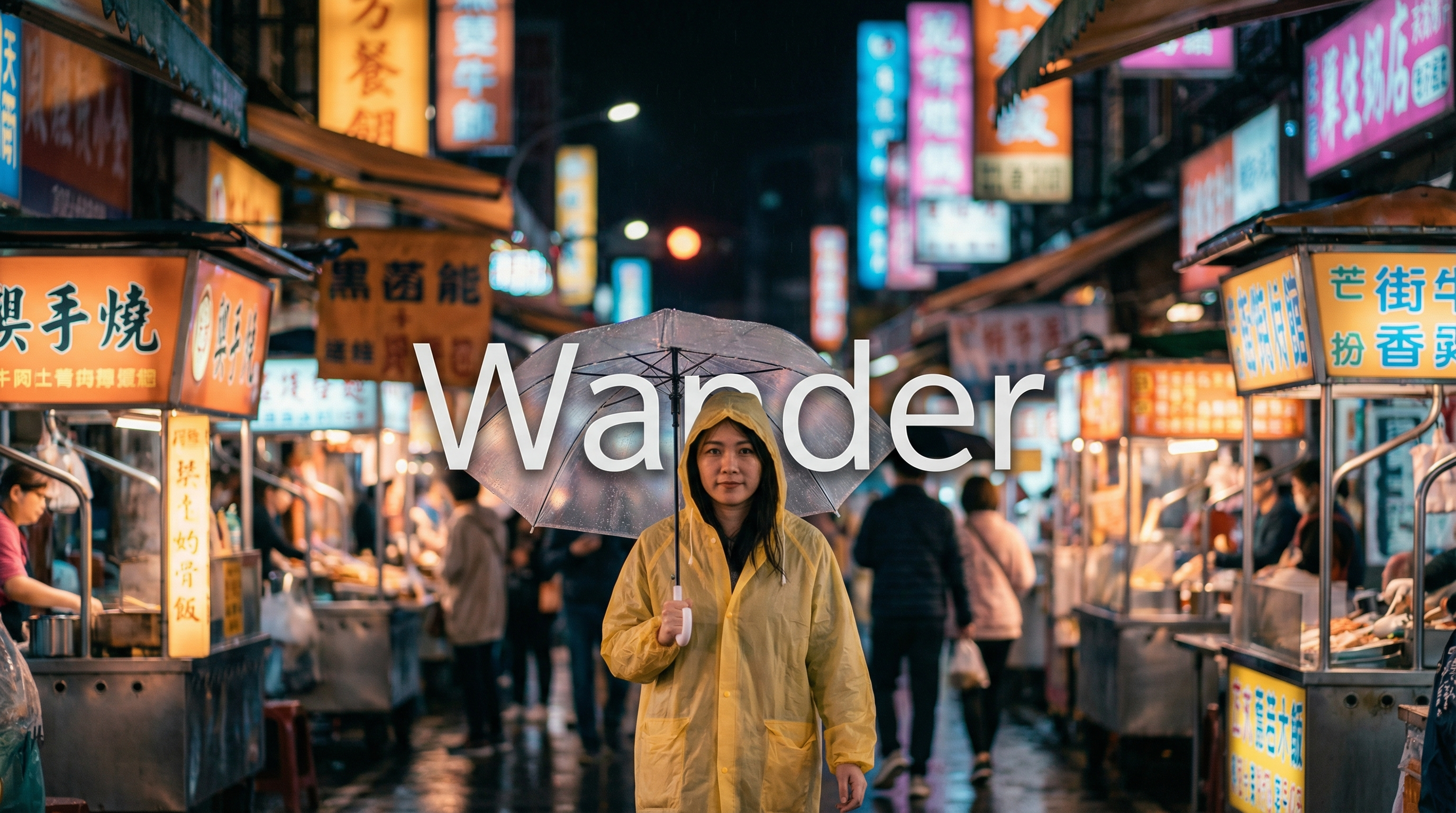
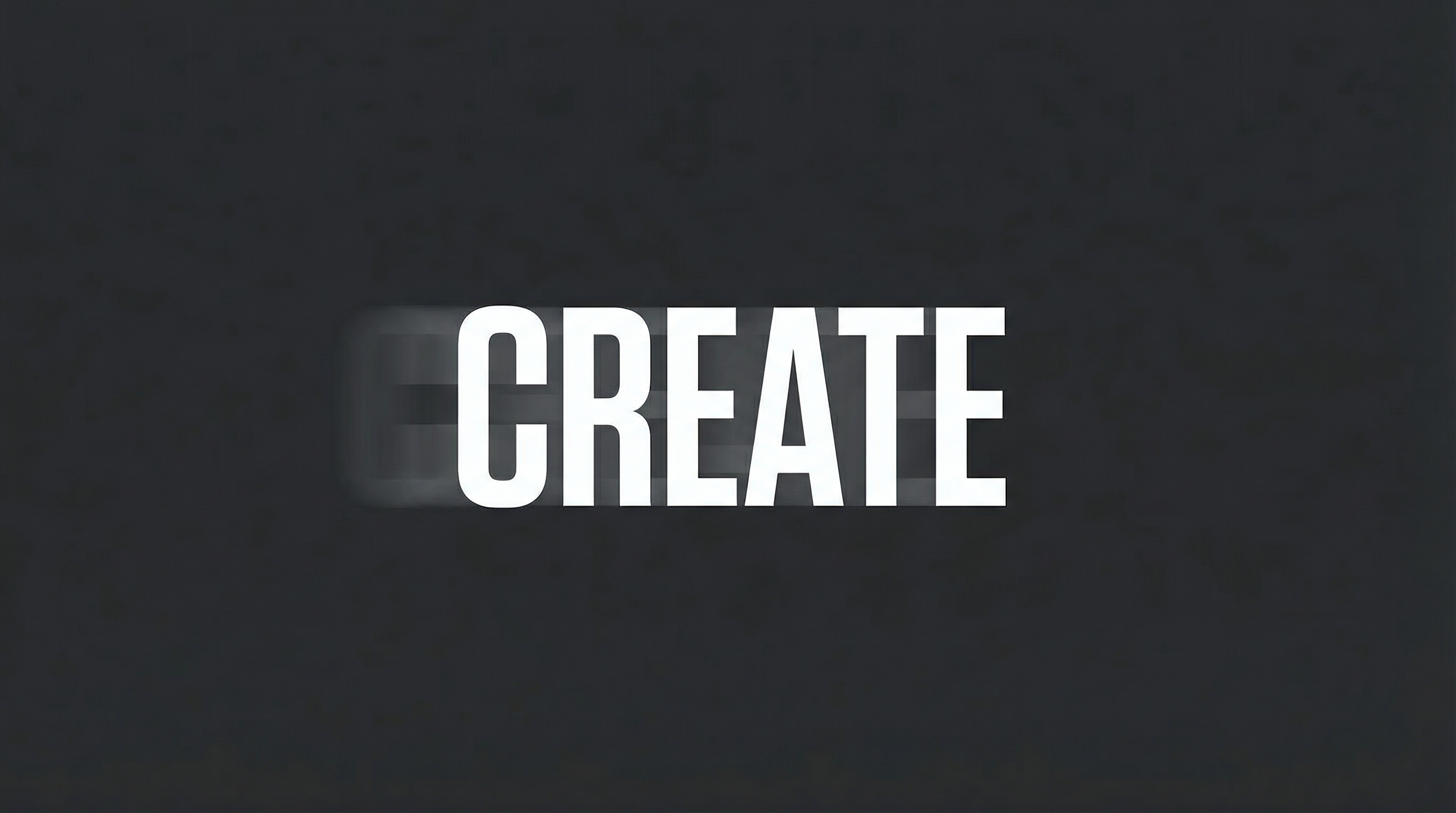
For promotional or narrative title cards, specify the text content, when it appears, where it sits in the frame, and how it enters.
Slogan overlay in a neon-lit environmentClean title card with kinetic text entrance
Text-to-Video
Flat illustration style: A woman in a yellow raincoat walks through a neon-lit night market, pausing to look at a lantern stall. The frame softens into a shallow depth-of-field blur, and the words "Wander" then "Wonder" then "OpenArt" appear center-frame in sequence, white condensed sans-serif against the bokeh.
Subtitles
Syntax: Display subtitles at the bottom-center with the text "[your dialogue]." Subtitles sync precisely with audio rhythm and pacing.
Image-to-Video
A cinematic aerial shot slowly descending over a fog-covered valley at golden hour. Voiceover: A calm female voice narrates, "There are places the map forgot, and those are the ones worth finding." Render the narration as subtitles at the bottom-center, perfectly synchronized with the voiceover timing.
Speech Bubbles
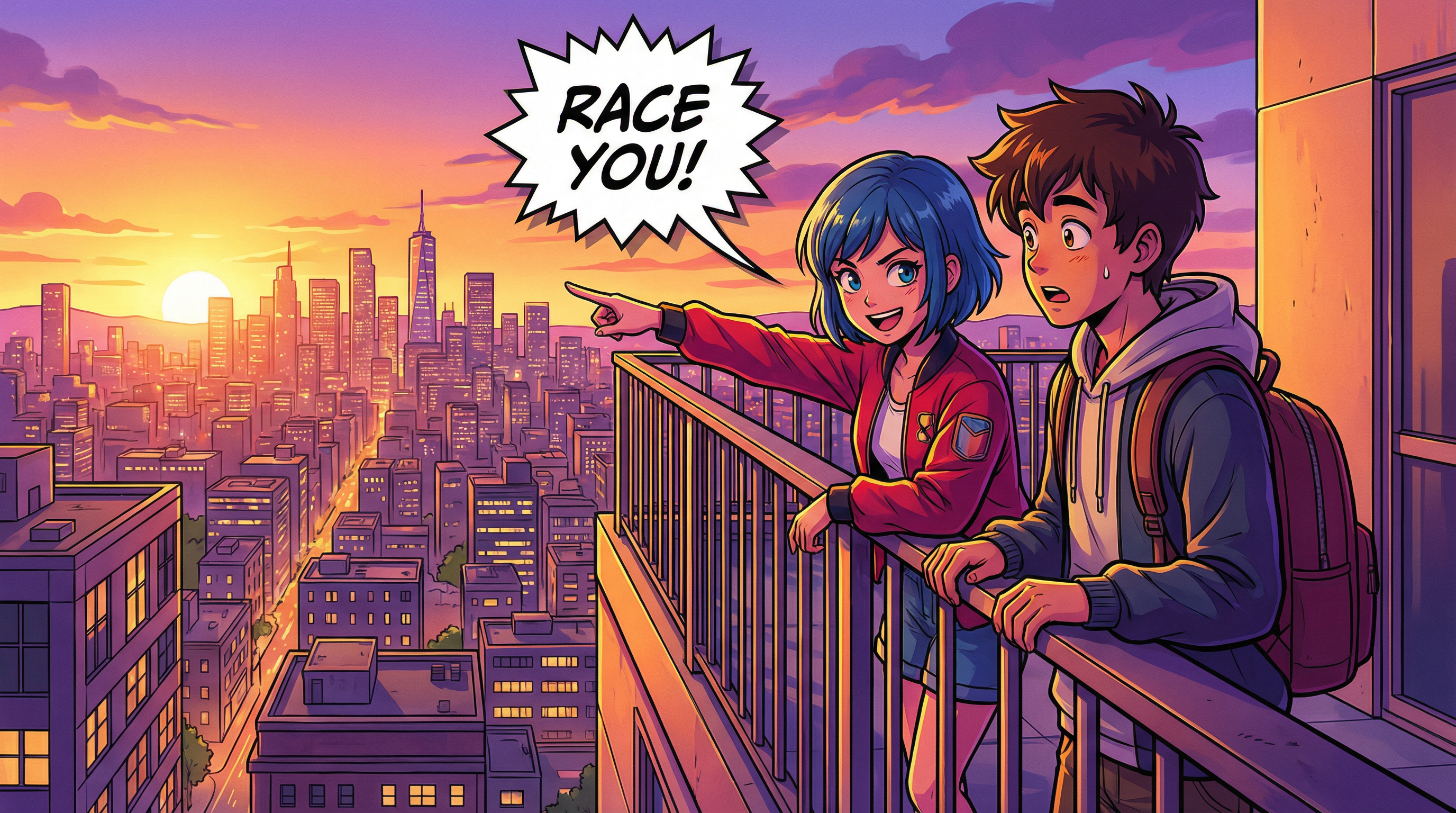
Syntax: [Character] says, "[Dialogue]." Speech bubbles appear around the character containing the spoken text.
Speech bubble rendering in a stylized animation scene
Text-to-Video
Anime style: Two teenagers stand at the edge of a rooftop overlooking a sprawling city at sunset. The girl turns to the boy with a grin and says, "Race you to the bottom." The boy laughs and replies, "You always say that." Speech bubbles containing their lines appear beside each character as they speak.
04 — Visual Asset Referencing
Image-Based Control
Upload one or more images to anchor subjects, environments, compositions, and brand elements. The model supports multi-angle subject referencing, multi-image scene construction, and storyboard-driven sequencing.
Multi-Angle Subject Locking
Syntax: Refer to / Extract / Combine the [Subject] from [Image 1], [Image 2], and [Image 3] to generate [Scene], maintaining consistent [Subject] features throughout.
Product Showcase
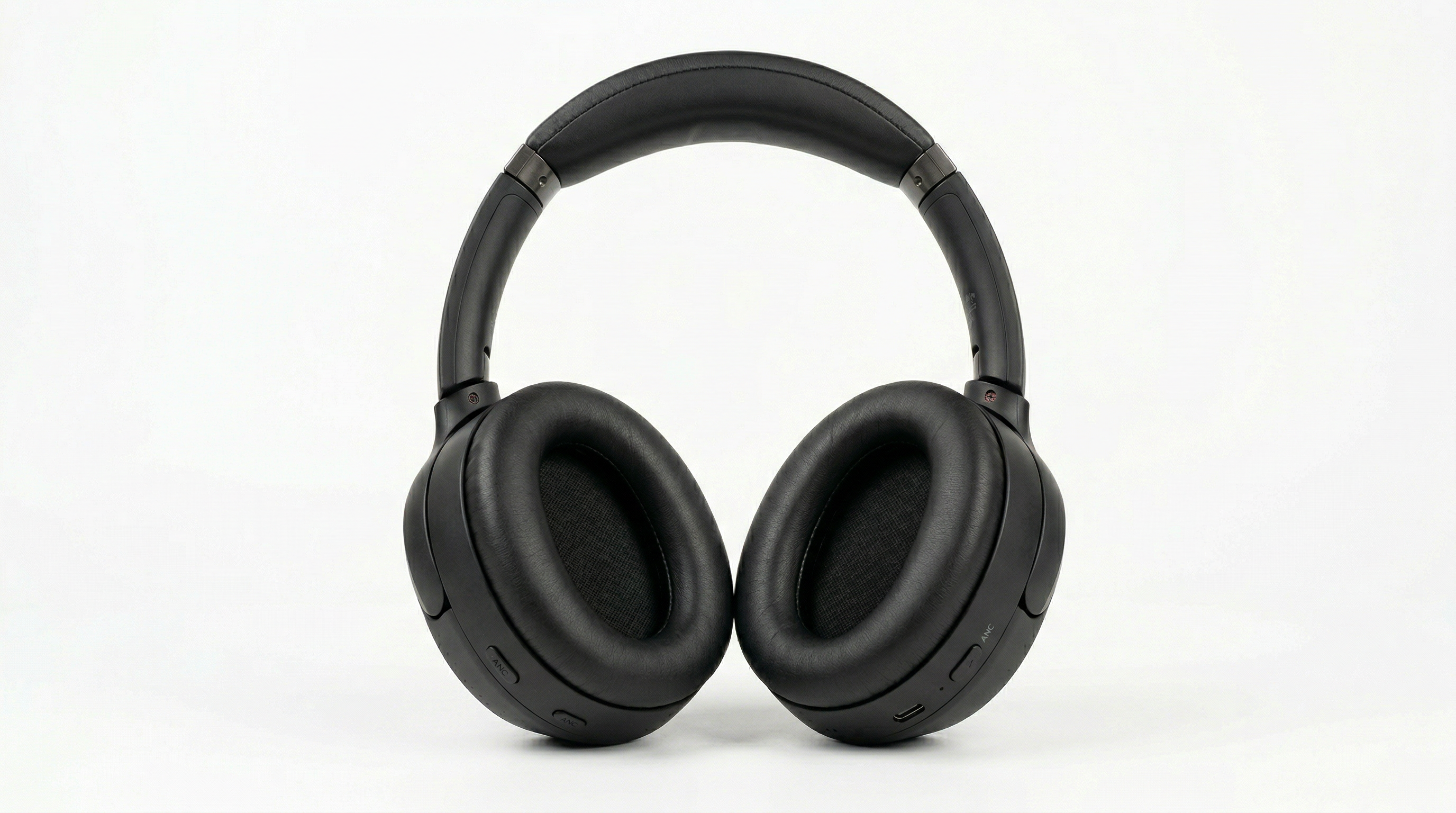
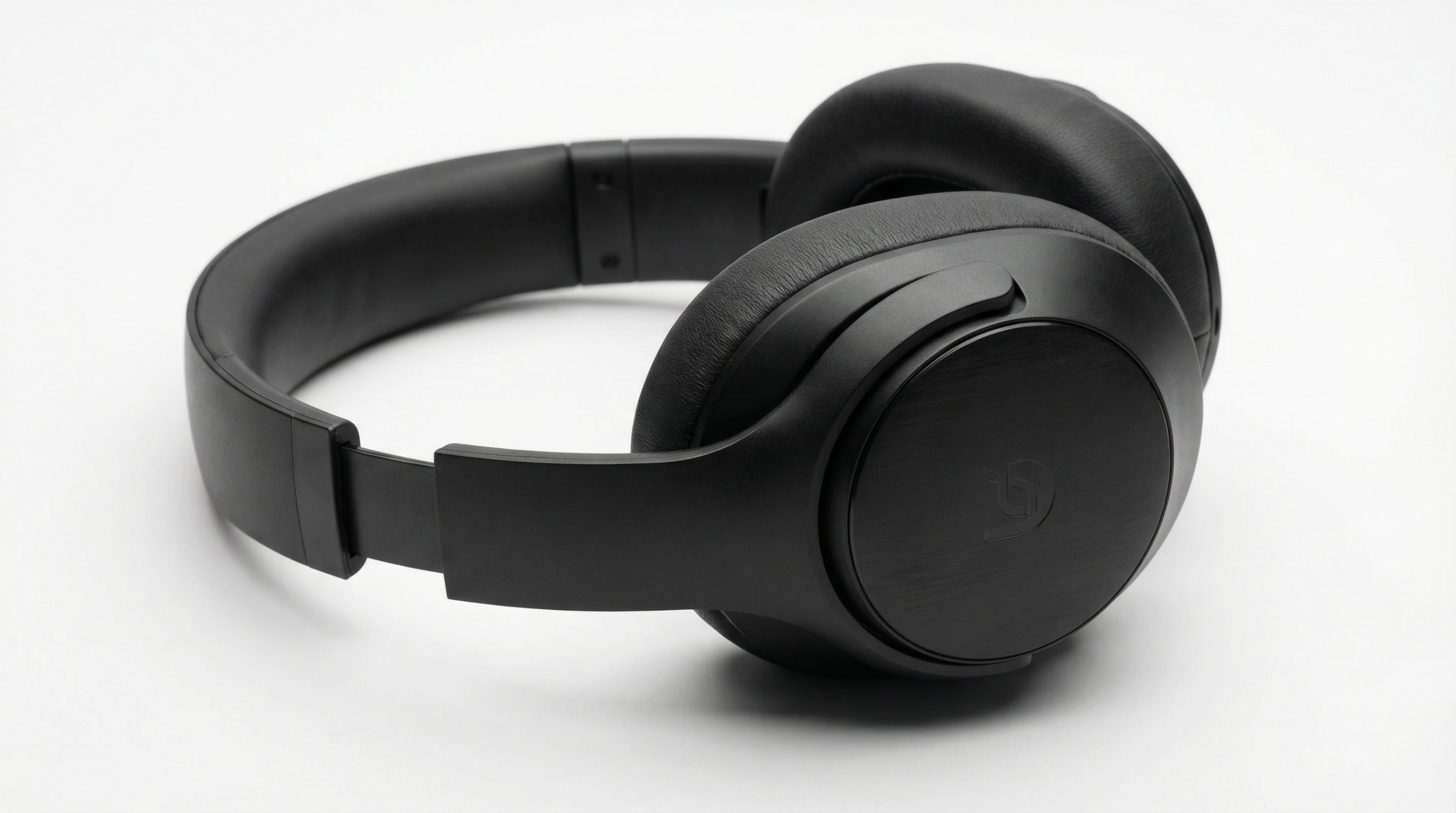
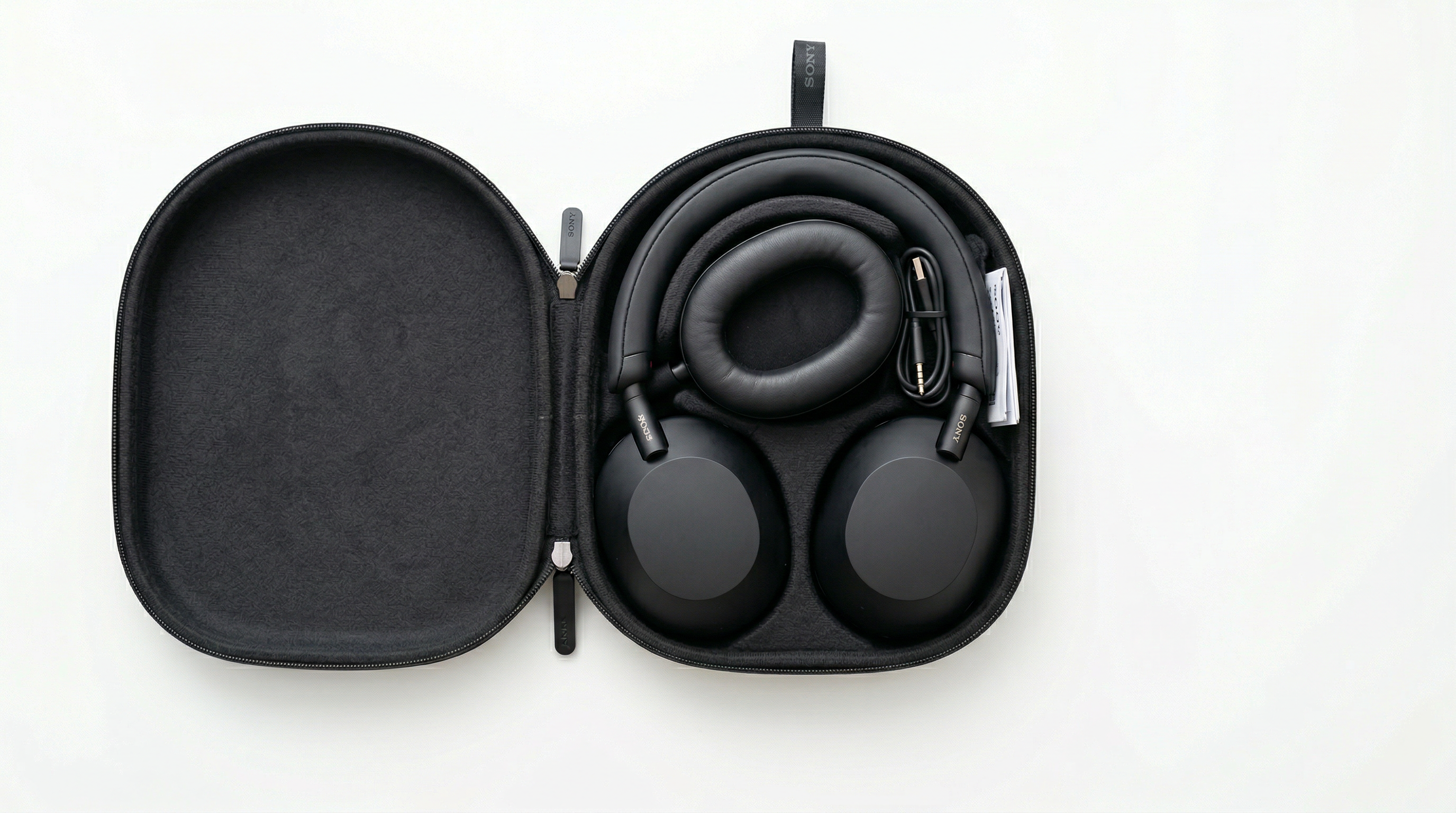
Image 1 — Front viewImage 2 — Side profileImage 3 — Case detail
Reference + I2V
Use the wireless headphones from Image 1 (front view), Image 2 (side profile), and Image 3 (case open). Place them on a matte black pedestal in a studio with soft overhead lighting. The camera opens on a tight close-up of the ear cup texture, then orbits 360 degrees around the headphones, revealing every angle. Slow, deliberate movement. Minimal ambient soundtrack with a low hum.
Character Consistency
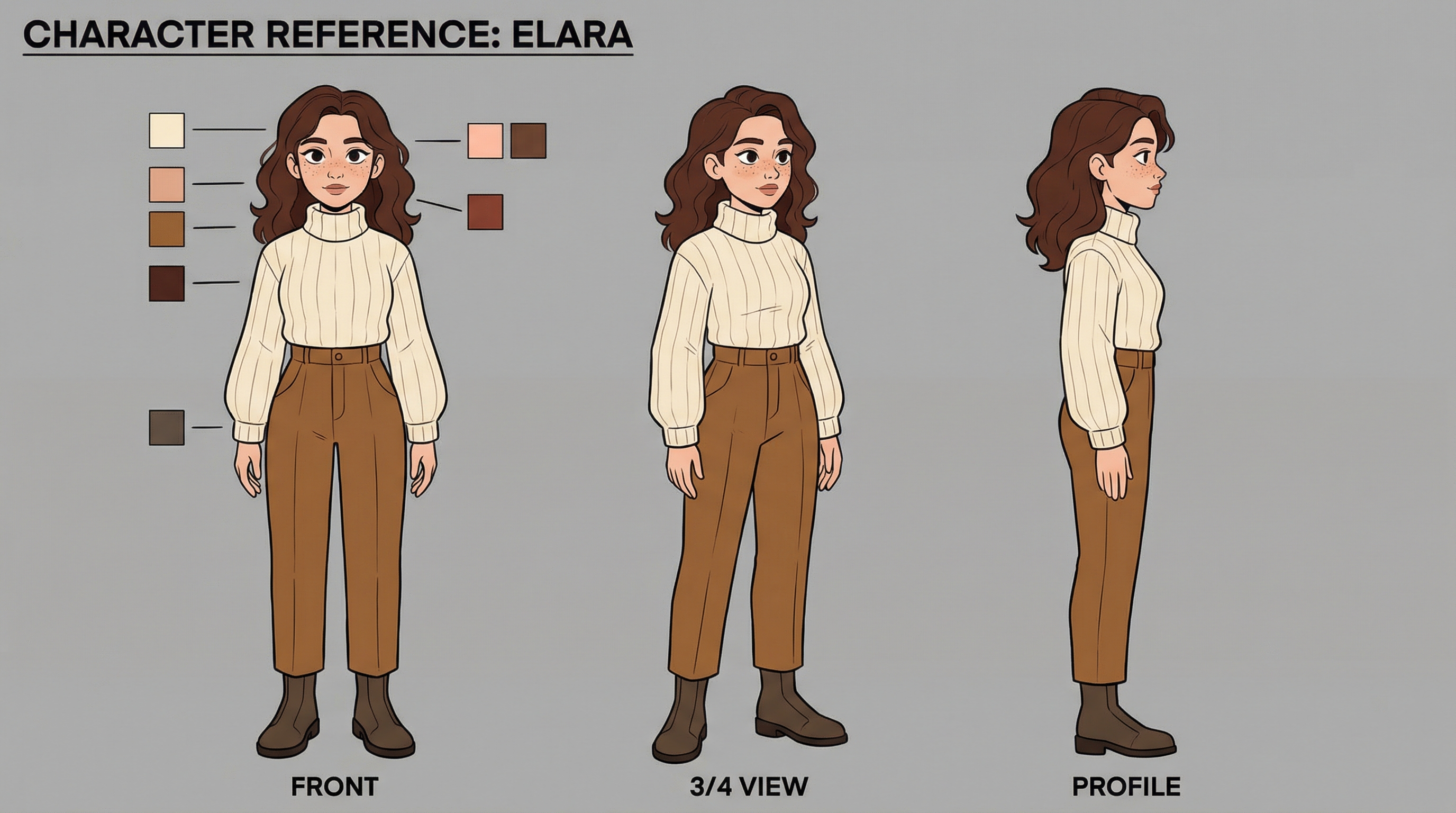
Multi-angle character reference for consistent identity across scenes
Reference + T2V
Refer to the young woman from Image 1 (front), Image 2 (three-quarter), and Image 3 (profile). Generate a scene of her walking through an autumn park, leaves falling around her. She pauses at a bench, sits down, and opens a leather-bound notebook. Warm afternoon light, shallow depth of field on the background trees.
Multi-Image Scene Assembly
Syntax: Refer to / Extract / Combine the [Element description] from [Image N] to generate [Scene], maintaining consistency of [Referenced elements].
Brand Logo Integration
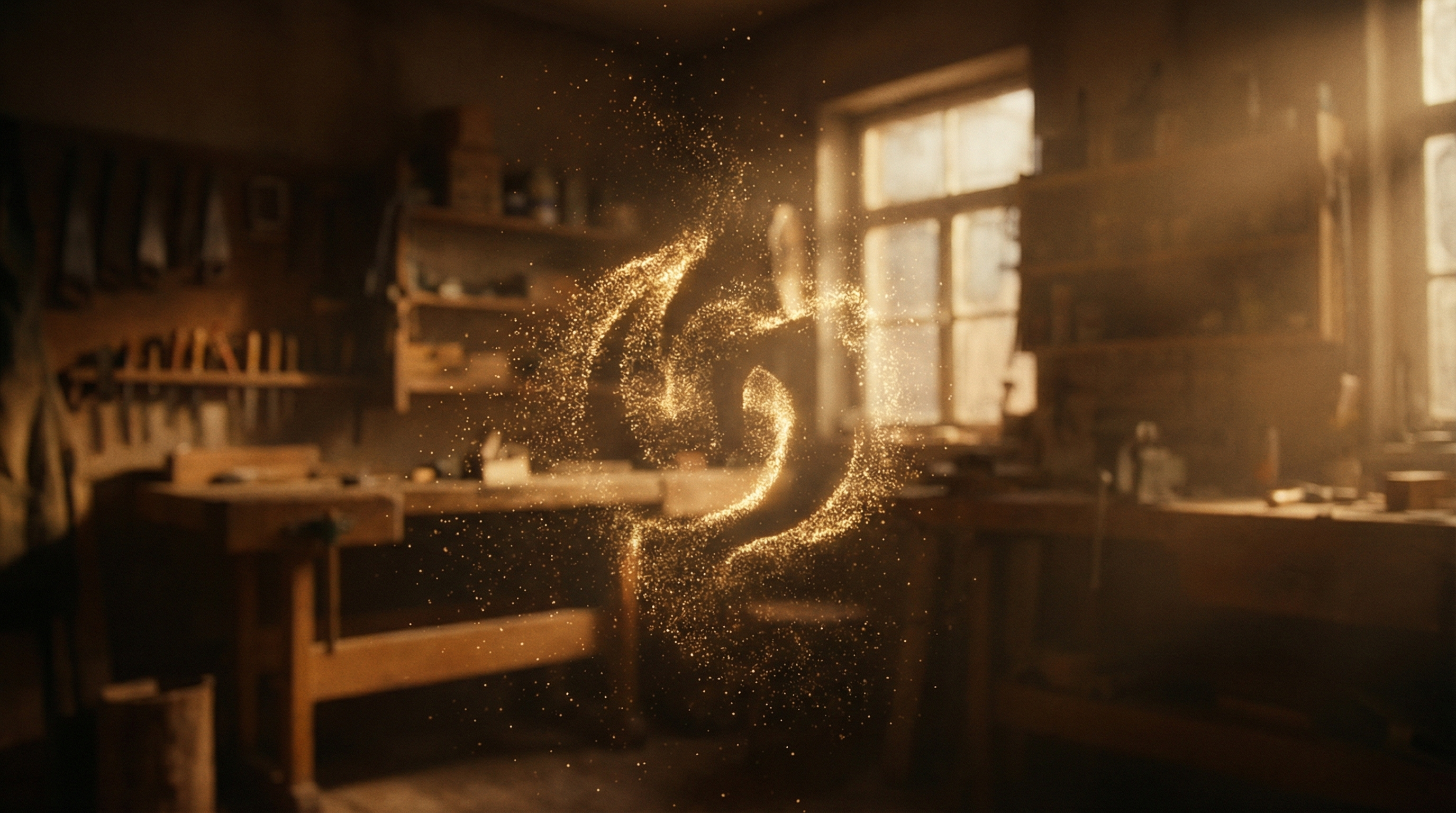
Logo reveal through in-scene particle assembly
Multi-Image Reference
The scene opens on a dimly lit workshop. A craftsman, referencing the character from Image 2, carefully shapes a piece of clay on a spinning wheel. The camera slowly pushes in on his hands. As the pot takes shape, the kiln behind him glows bright orange. The frame fades to warm amber, and the logo from Image 1 forms at center-screen, assembled from swirling particles of clay dust. Tactile, warm color grade throughout.
Multi-Subject Composition
Multi-Image Reference
Using the golden retriever from Image 1 and the tabby cat from Image 2 as subjects, set the scene in a sunlit living room with hardwood floors. The dog is napping on a rug when the cat slinks over and bats at the dog's ear. The dog lifts its head, yawns, and the cat curls up against the dog's side. Warm interior light, handheld camera feel with subtle movement.
Storyboard Sequencing
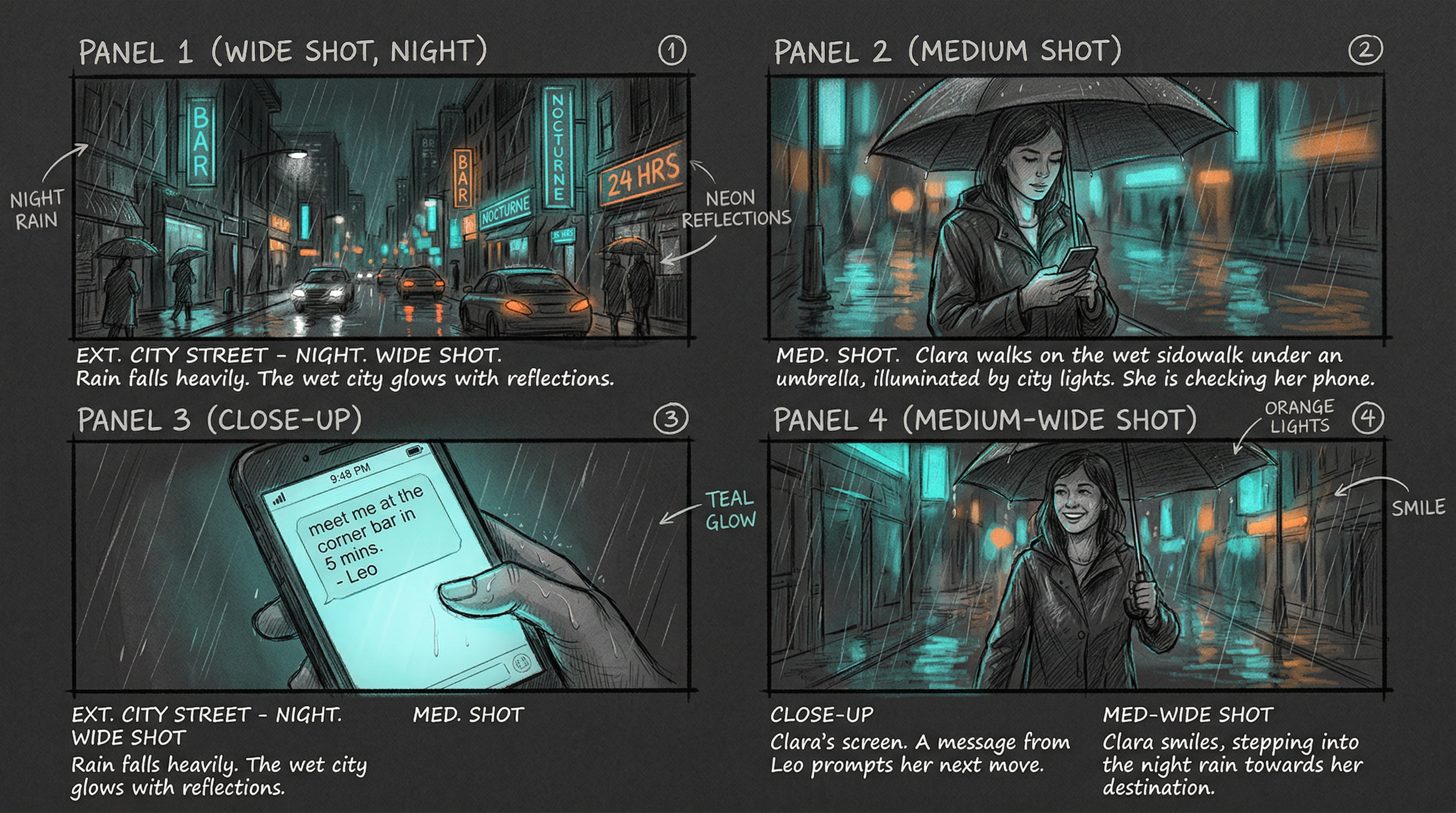
A four-panel storyboard referenced for sequential shot generation
Storyboard Reference
Follow the storyboard layout in Image 1. Panel 1: Wide shot of a rain-soaked city street at night. Panel 2: Medium shot of a woman under an umbrella, looking at her phone. Panel 3: Close-up of the phone screen showing a message. Panel 4: She smiles and steps into the rain. Execute each panel composition in strict order, with smooth dissolve transitions between shots. Neo-noir lighting, high contrast, teal and orange color grade.
05 — Audio Layer Control
Voice, Dialogue, and Sound Design
Audio references let you pin specific vocal timbres to characters, drive lip-sync precision, and layer soundscapes into your generations. Upload audio files alongside images or video, and reference them by number in your prompt.
⚠
Note: Audio-only uploads are not supported. Always pair audio references with at least one image or video input.
Voice Cloning for Characters
Syntax: [Character] says: "[Dialogue]," using the voice from [Audio N].
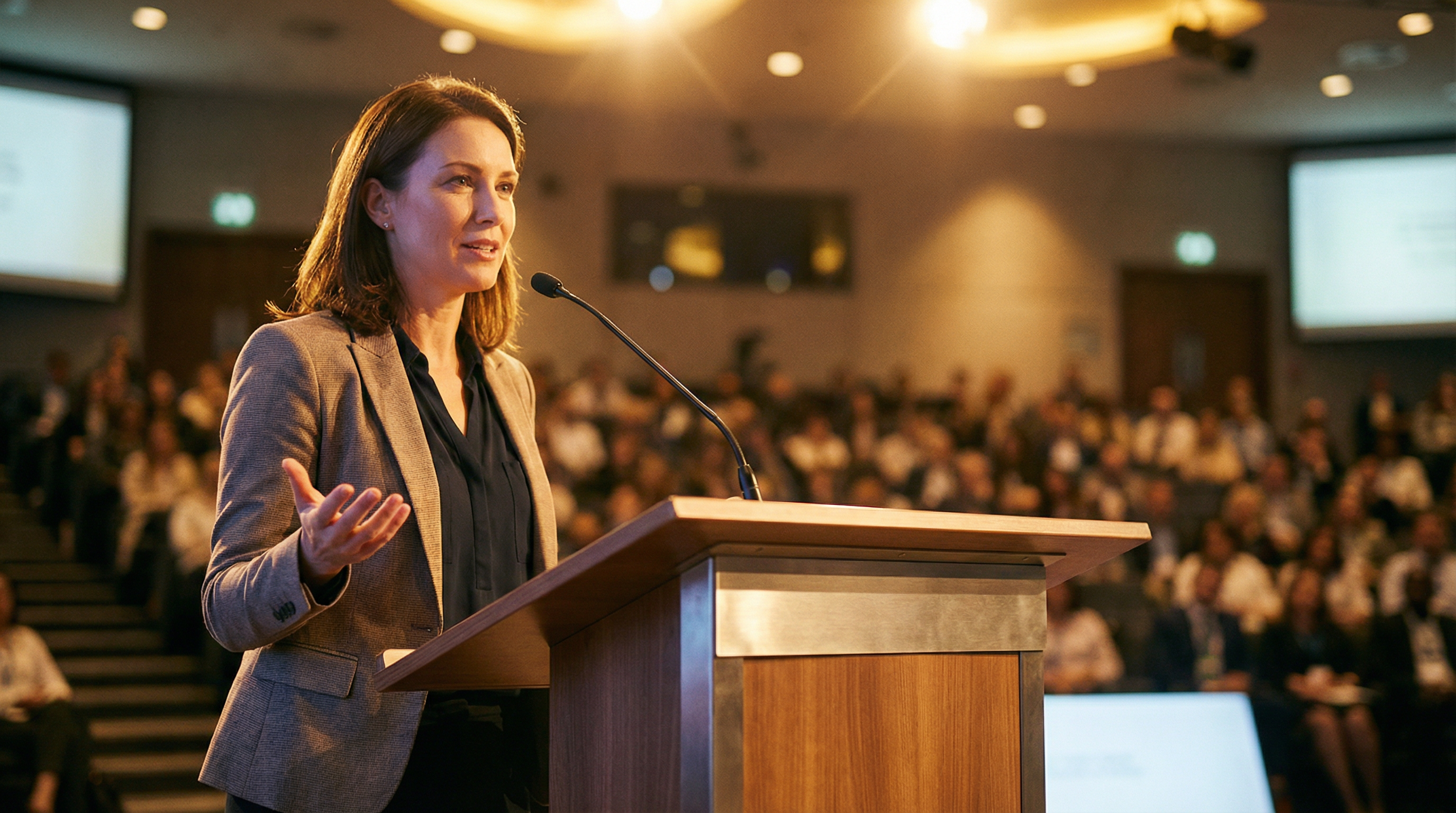
Character with synced lip movement driven by audio reference
Image + Audio Reference
The woman from Image 1 stands at a podium in a modern conference hall. Warm stage lighting. She speaks with the voice from Audio 1, delivering the line: "The future is not something we wait for. It is something we design." Confident posture, natural hand gestures, and precise lip-sync. The camera slowly tightens from a medium shot to a close-up on her face as she finishes the sentence.
Dialogue Between Characters
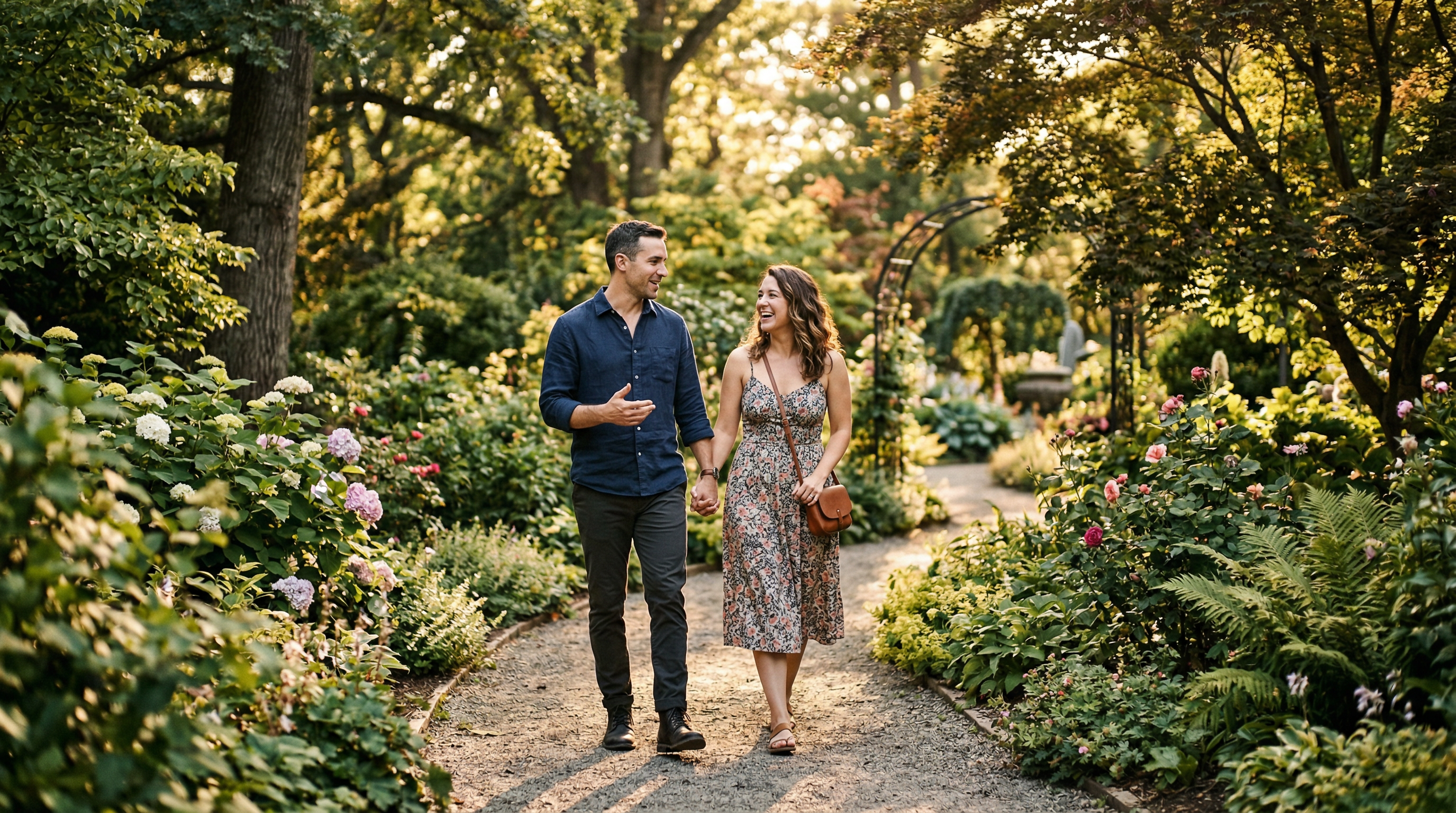
Multi-character dialogue with independent voice references
Multi-Image + Multi-Audio
The man from Image 1 and the woman from Image 2 are walking through a botanical garden in soft afternoon light. The man speaks with the voice of Audio 1, saying with a smirk: "I told you this was the shortcut." The woman responds with the voice of Audio 2, rolling her eyes playfully: "This is the third time you've said that." Shallow depth of field, natural ambient bird sounds underneath the dialogue, expressive facial movements, and perfectly synchronized lip motion.
Background Music and Sound Integration
Syntax: [Timing description or trigger moment] + play [Audio N].
Video + Audio Reference
Extend Video 1 duration. As the camera tilts upward to reveal the mountain peak, begin playing Audio 1 simultaneously with the camera movement. The music should swell as the full panorama comes into view.
06 — Motion Transfer and Video Referencing
Using Video as Input
Upload video clips to transfer motion choreography, replicate camera movements, or extract visual effects into new scenes. This is one of the most powerful capabilities for creators who need precise kinetic control.
Motion Transfer
Syntax: Refer to the [Motion type] from [Video N] to generate [New scene], keeping the motion details consistent.
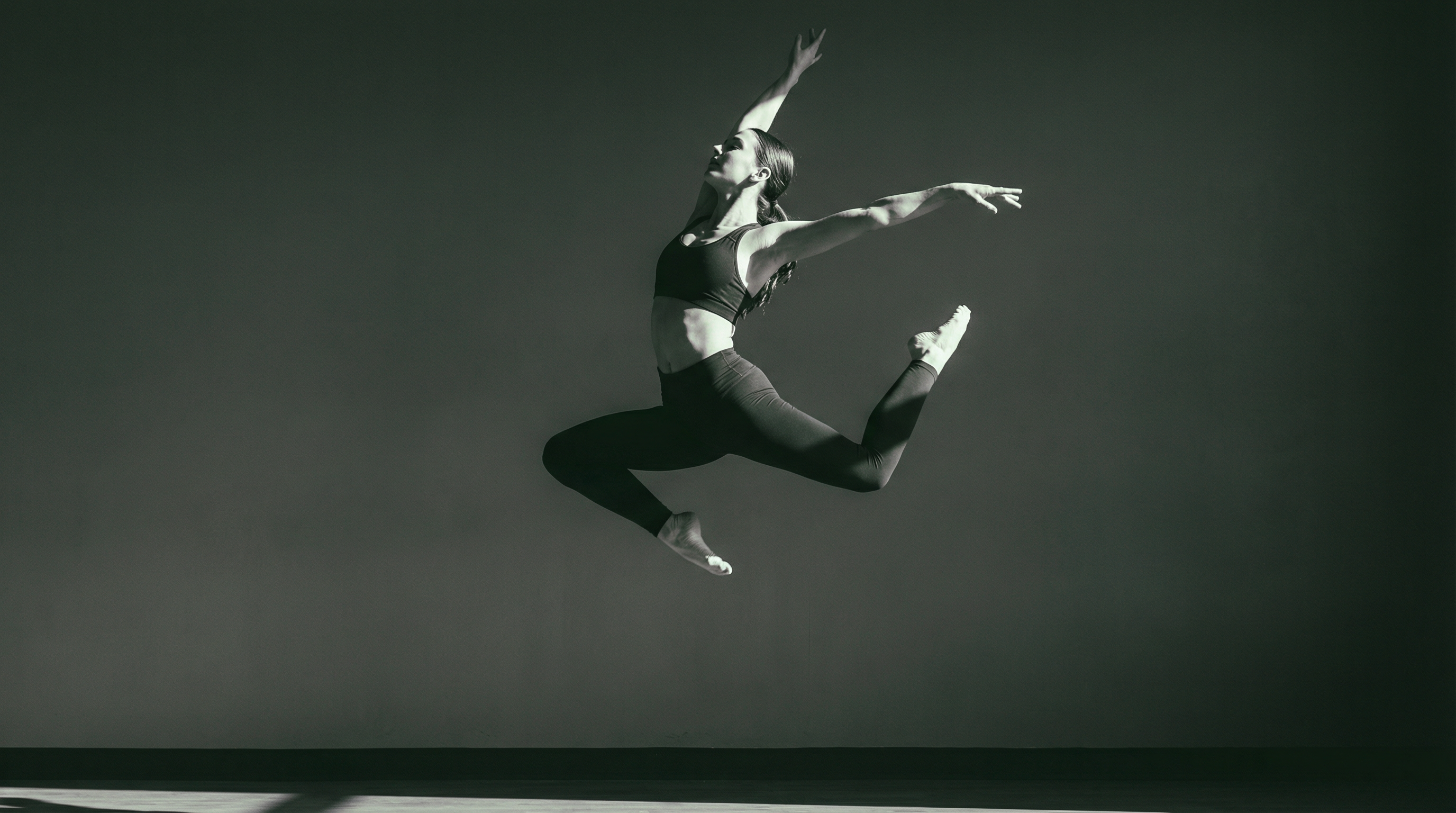
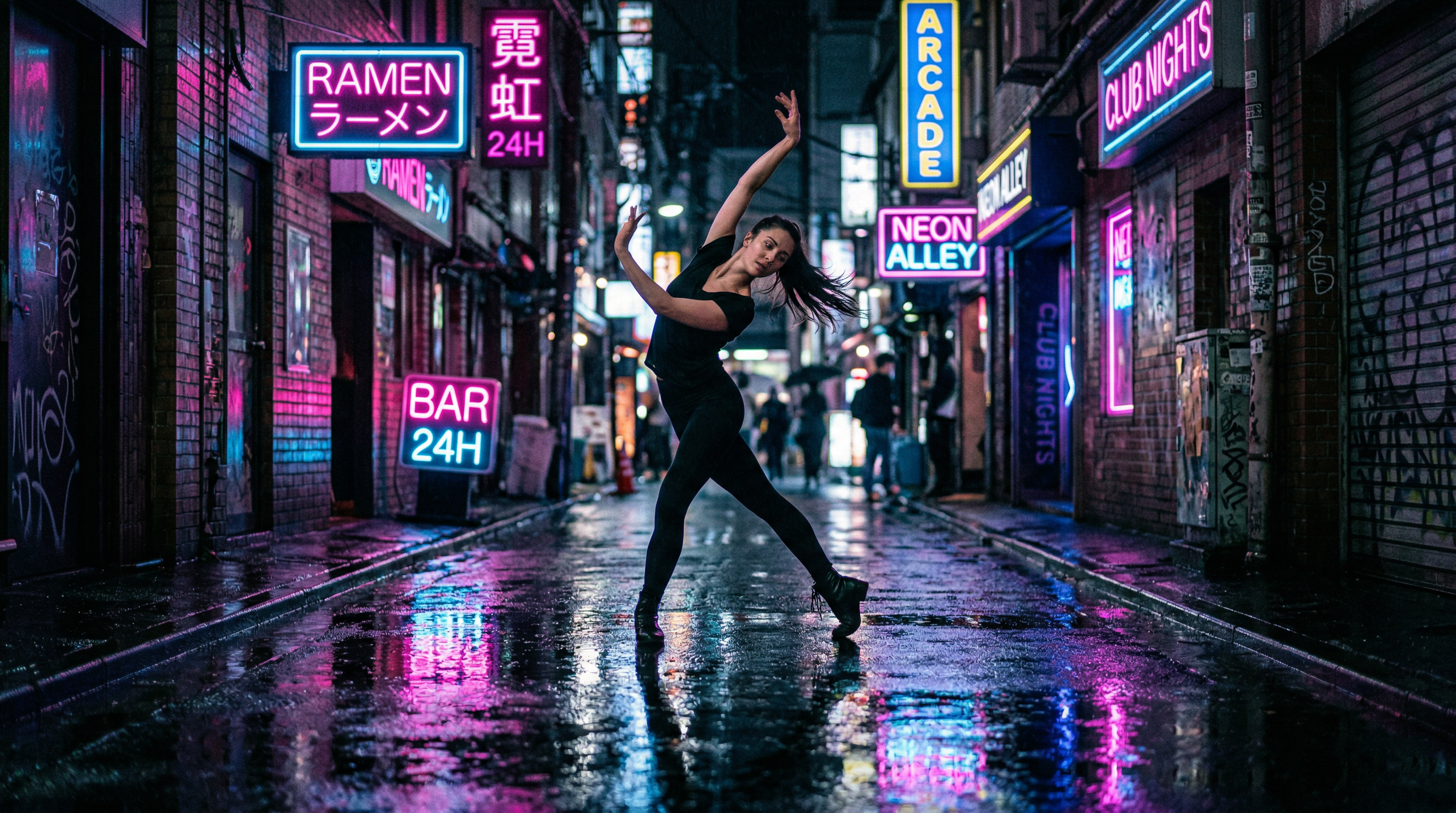
Source: Reference motion from uploaded videoOutput: Motion applied to new character and environment
Video + Image Reference
Reference the fluid dance choreography from Video 1. Apply it to the character from Image 1, now performing in a rain-slicked alleyway at night. Neon reflections on the wet ground. The camera matches a handheld documentary feel with tight framing. High-energy electronic soundtrack implied by the movement pacing.
Video Reference
Referencing the galloping motion of the horse in Video 1, generate a new scene: a metallic chrome stallion sprints across a salt flat at sunset, then freezes mid-stride and transforms into a polished sculpture. The camera catches the last rays of light refracting off the chrome surface.
Camera Movement Transfer
Syntax: Refer to the [Camera movement] from [Video N] to generate [New scene], keeping the cinematography consistent.
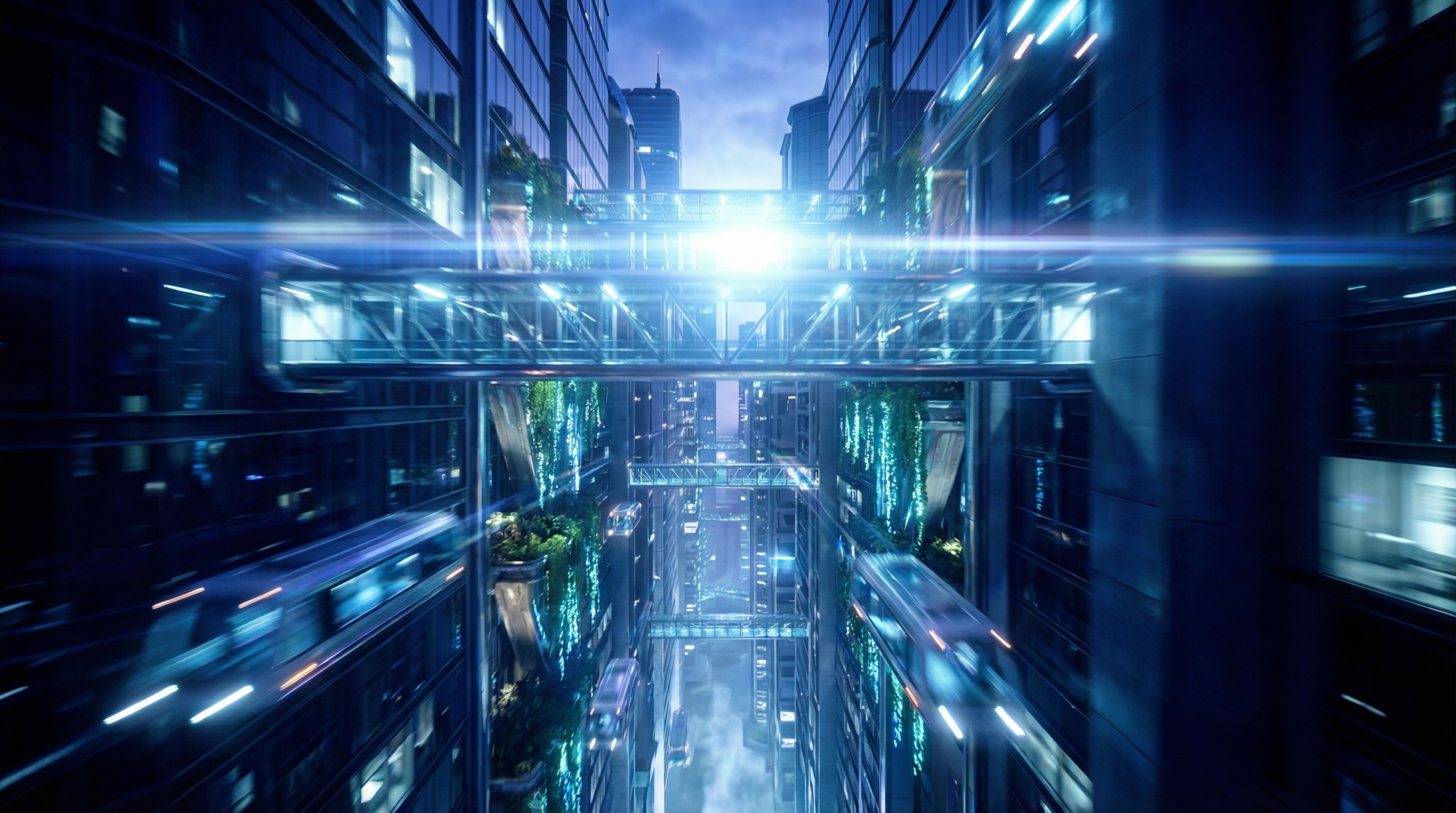
First-person dive camera motion transferred to a new architectural scene
Video + Image Reference
Using the first-person diving camera motion from Video 1, create a concept reel for a futuristic vertical city. The camera plunges from cloud level down through layers of glass bridges and hovering gardens, with the tower from Image 1 as the central visual anchor. High-contrast sci-fi color grade, lens flare on descent.
Visual Effects Transfer
Syntax: Refer to the [VFX description] from [Video N] to generate [New scene], keeping the effects consistent.
VFX particle trail transferred from reference video to a new performance scene
Video + Image Reference
Extract the shimmering aurora particle effects from Video 1. Apply them to the guitarist from Image 1 so that as he plays, the same luminous particles trail from his fingertips and swirl around the guitar neck. Outdoor amphitheater at dusk, medium-wide shot, shallow depth of field on the background crowd.
07 — Post-Generation Editing
Modifying Existing Video
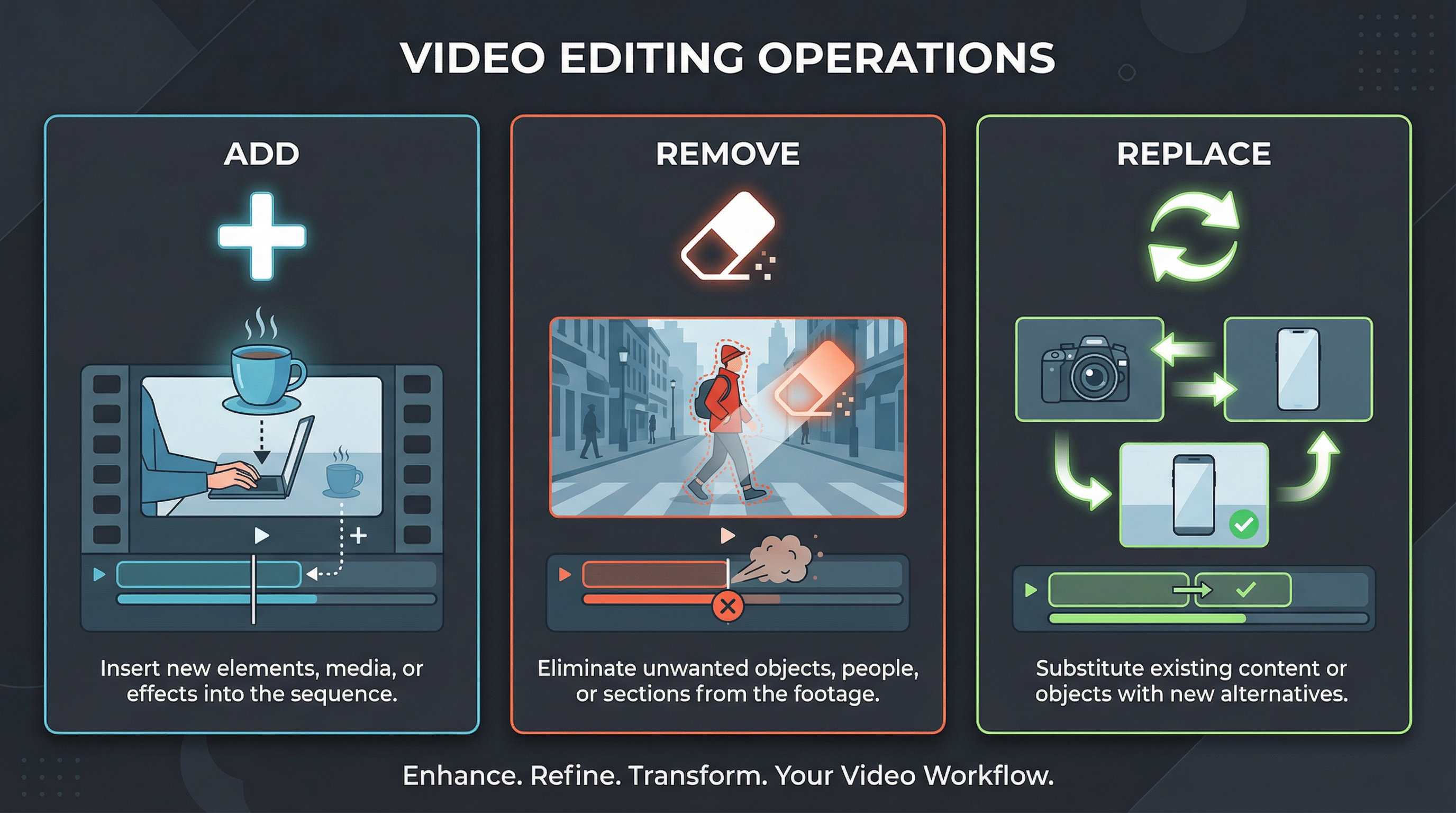
Once you have generated (or uploaded) a video, you can instruct the model to add, remove, or replace elements within it, extend it forward or backward in time, or stitch multiple clips together with intelligent transitions.
The three editing operations: Add, Remove, Replace
Element Manipulation
Adding Elements
Add: At [Timing] and [Position] in [Video N], add [Element description].
Video Edit
In Video 1, add a steaming cup of coffee and an open book to the table in front of the seated character. Both items should appear naturally from the start of the clip, as if they were always part of the scene.
Removing Elements
Remove: Remove [Element] from [Video N], keeping the rest of the video content unchanged.
Video Edit
Remove the pedestrians and street traffic from Video 1, leaving only the main character walking down the empty avenue. Preserve all original camera movement and lighting.
Replacing Elements
Replace: Replace [Original element] in [Video N] with [New element], preserving all original motion and camera work.
Before: Original product in sceneAfter: Swapped product, motion preserved
Video Edit
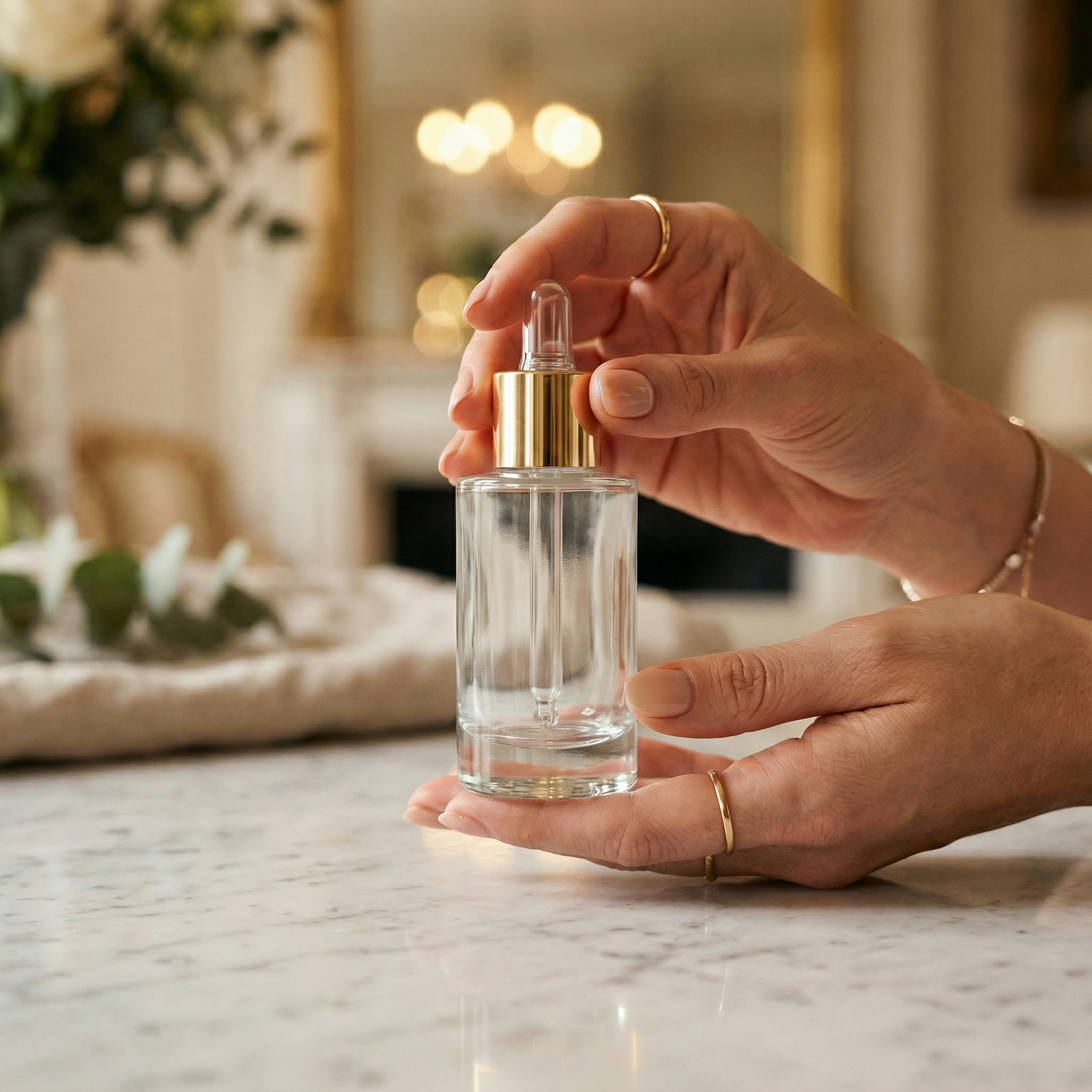
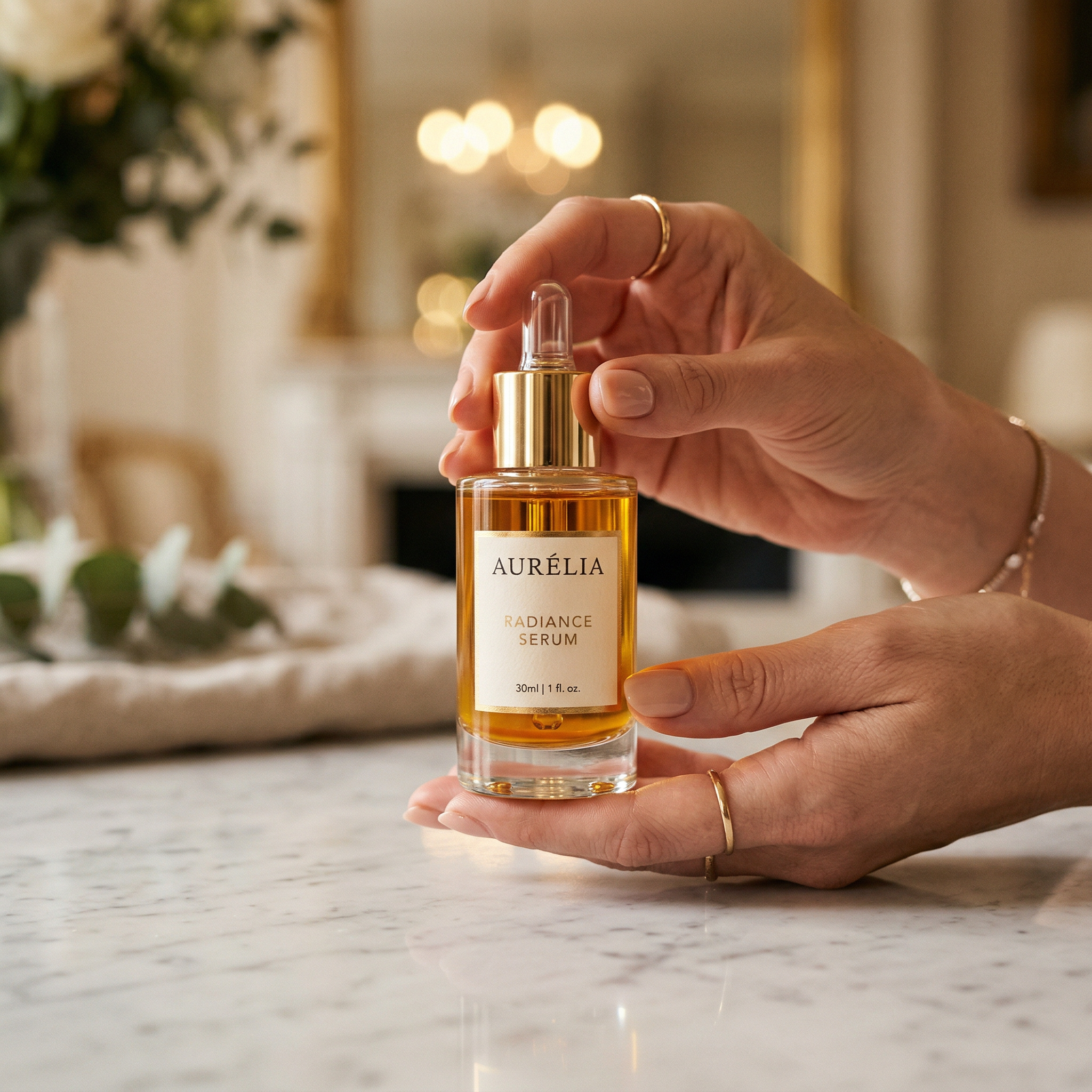
Replace the glass bottle featured in Video 1 with the skincare serum from Image 1. Maintain all original hand movements, camera angles, and lighting. The serum bottle should catch the same reflections and highlights as the original object.
Video Extension
Syntax: Extend [Video N] forward/backward: [Description of new content].
Forward Extension
Extend Video 1 forward: After the group high-fives, they turn and walk toward the sunset along the beach. The camera lingers on their silhouettes as the waves roll in.
Backward Extension
Extend Video 1 backward: Before the door opens, show a close-up of a hand hesitating on the doorknob. A deep breath is audible. Then the hand turns the knob.
Multi-Clip Stitching
Syntax: [Video 1] + [Transition] + followed by [Video 2] + [Transition] + followed by [Video 3]
Track Completion
Video 1. As the skateboarder lands the trick, a burst of chalk dust fills the frame, dissolving into Video 2. The dust settles to reveal a dancer mid-spin on a rooftop at golden hour.
●
Limits: Maximum of 3 input clips. Combined total duration must not exceed 15 seconds. The model auto-trims start and end frames at connection points to ensure seamless output.
08 — Prompt Library
Ready-to-Use Templates
Copy, modify, and combine these prompts as starting points. Each is optimized for high visual coherence, motion realism, and narrative clarity.
Cinematic Narratives
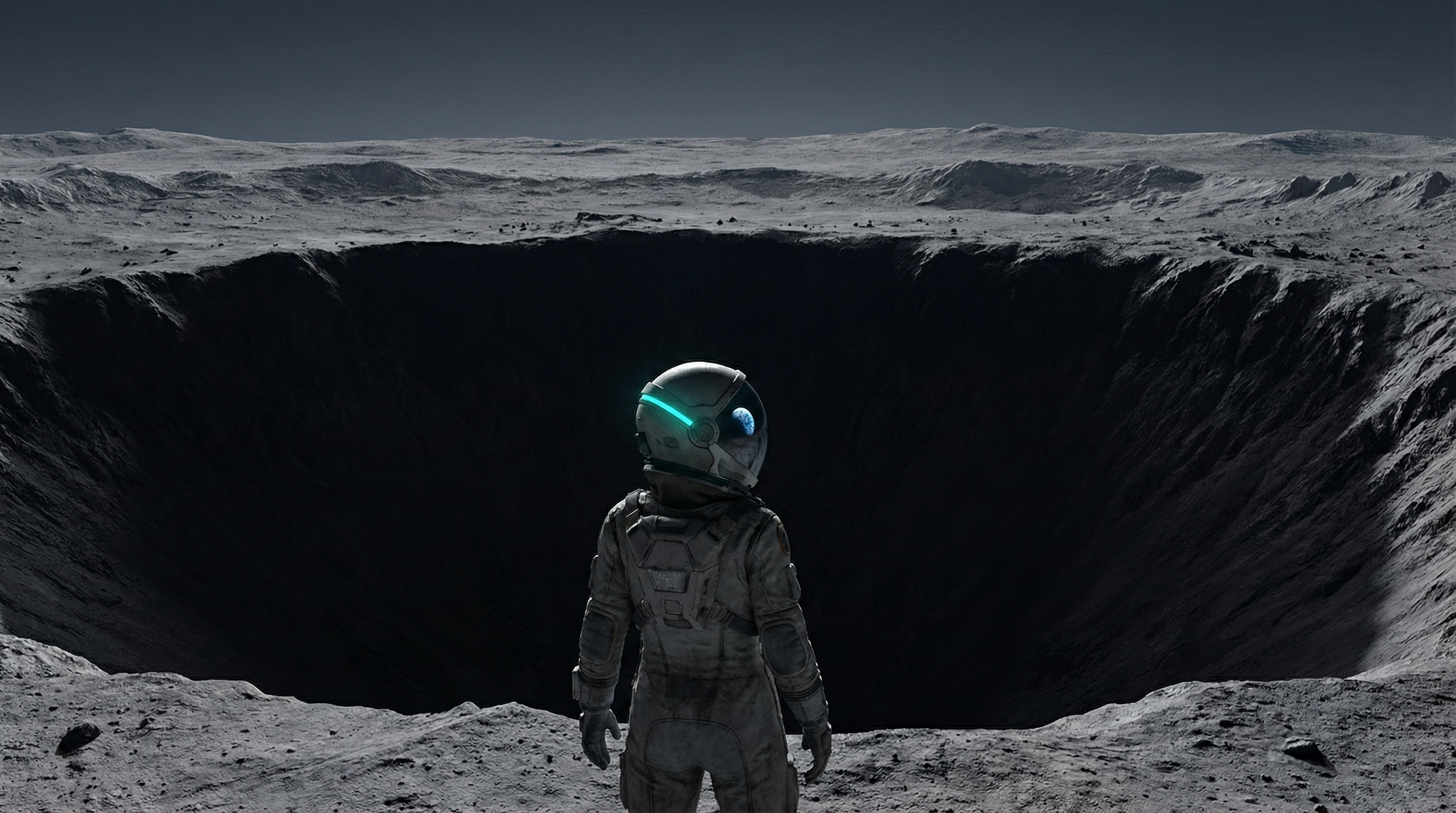
Cinematic T2V output, desaturated palette with isolated color accent
Text-to-Video
A lone astronaut stands at the edge of a massive crater on a barren moon. The visor reflects a distant blue planet. She takes one step forward and plants a small flag with an unknown insignia. The camera starts tight on her boot hitting the dust, then cranes upward to reveal the vast emptiness of the landscape. Desaturated palette with a single teal accent from the planet's reflection. Low rumble of wind across the surface.
Text-to-Video
A 1970s-styled detective sits in a dimly lit office, rain streaking the window behind him. He lights a cigarette. The smoke curls upward in slow motion, and the camera follows the smoke trail until it fills the frame. Through the haze, the scene dissolves into a rain-soaked street corner where a woman in a red coat waits under a flickering streetlight. Film grain, 35mm anamorphic distortion, muted greens and deep shadows.
Product and Brand
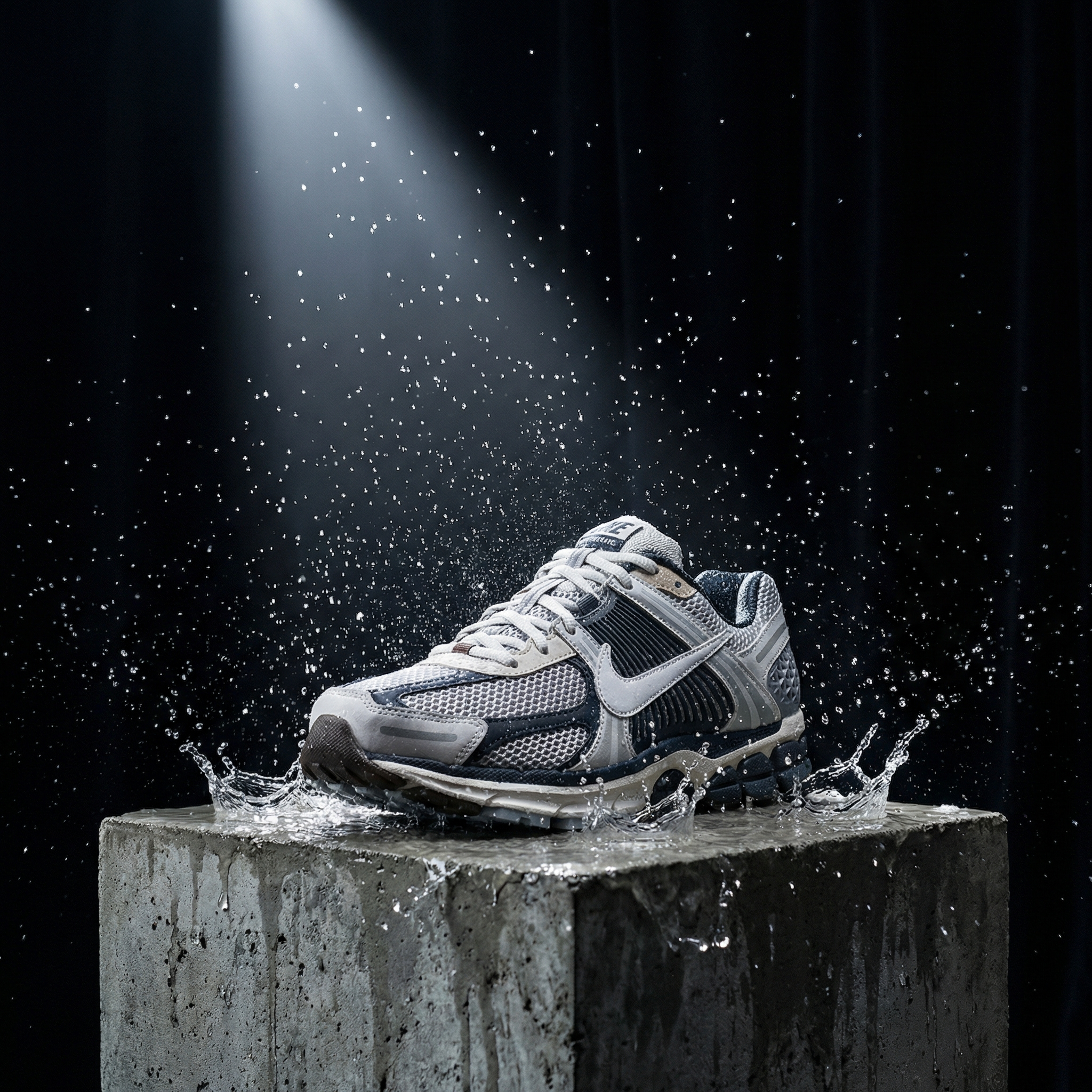
Product I2V, slow-motion waterproof revealLuxury T2V, amber glass on volcanic stone
Image-to-Video
The sneaker from Image 1 sits on a concrete surface. Water droplets begin falling onto it in slow motion, each drop exploding into a micro-splash that reveals the waterproof coating. The camera orbits 180 degrees during the sequence. Then a hand reaches in, picks up the sneaker, and flexes it to show the sole. Studio lighting with a single hard key light from the upper left, dark background, shallow depth of field.
Text-to-Video
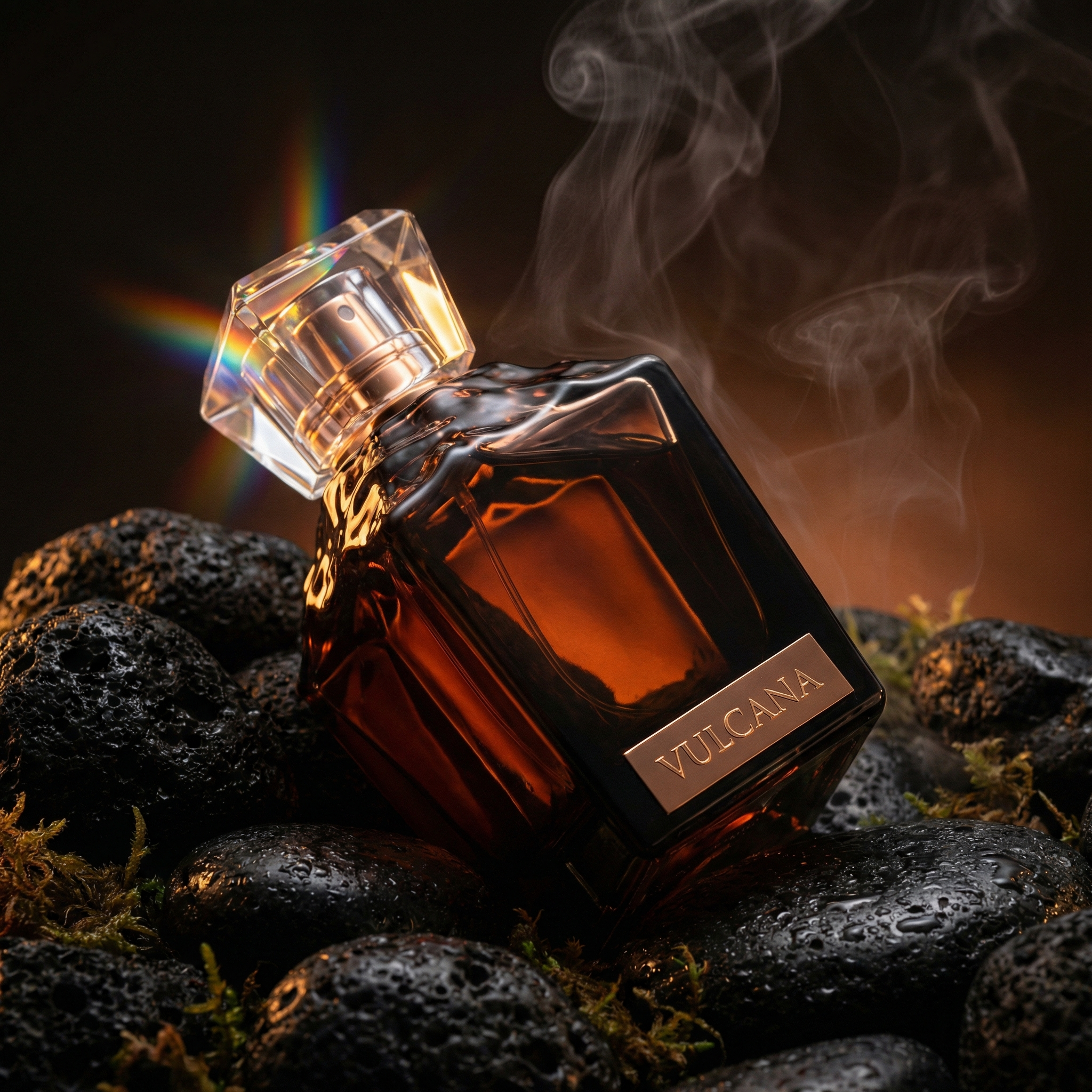
A perfume bottle made of dark amber glass rests on a bed of wet black stones. Steam rises from the stones as if from a hot spring. The camera slowly pushes in from a wide shot to an extreme close-up of the bottle's faceted cap, where light refracts into prismatic rainbows. The word "NOIR" fades in below the bottle in thin gold serif type. Luxury aesthetic, warm low-key lighting, rich blacks.
Social and UGC-Oriented
Text-to-Video
Phone screen recording style: A finger scrolls through a photo gallery showing travel memories, each photo briefly animating to life for 2 seconds (waves crashing, a market vendor waving, a sunset timelapse) before the finger scrolls to the next. The final photo expands to fullscreen as the text "Made with OpenArt" appears in a handwritten font at the bottom.
Image-to-Video
The still portrait from Image 1 comes alive: the subject breaks into a wide smile, pushes hair behind their ear, and looks directly into camera. They mouth the words "Try it yourself." The background stays softly blurred with warm bokeh. Selfie-camera framing, natural skin tones, daylight color temperature. Casual, authentic energy.
Animation and Stylized
Watercolor animation style, soft washes3D isometric pixel art with particle effects
Text-to-Video
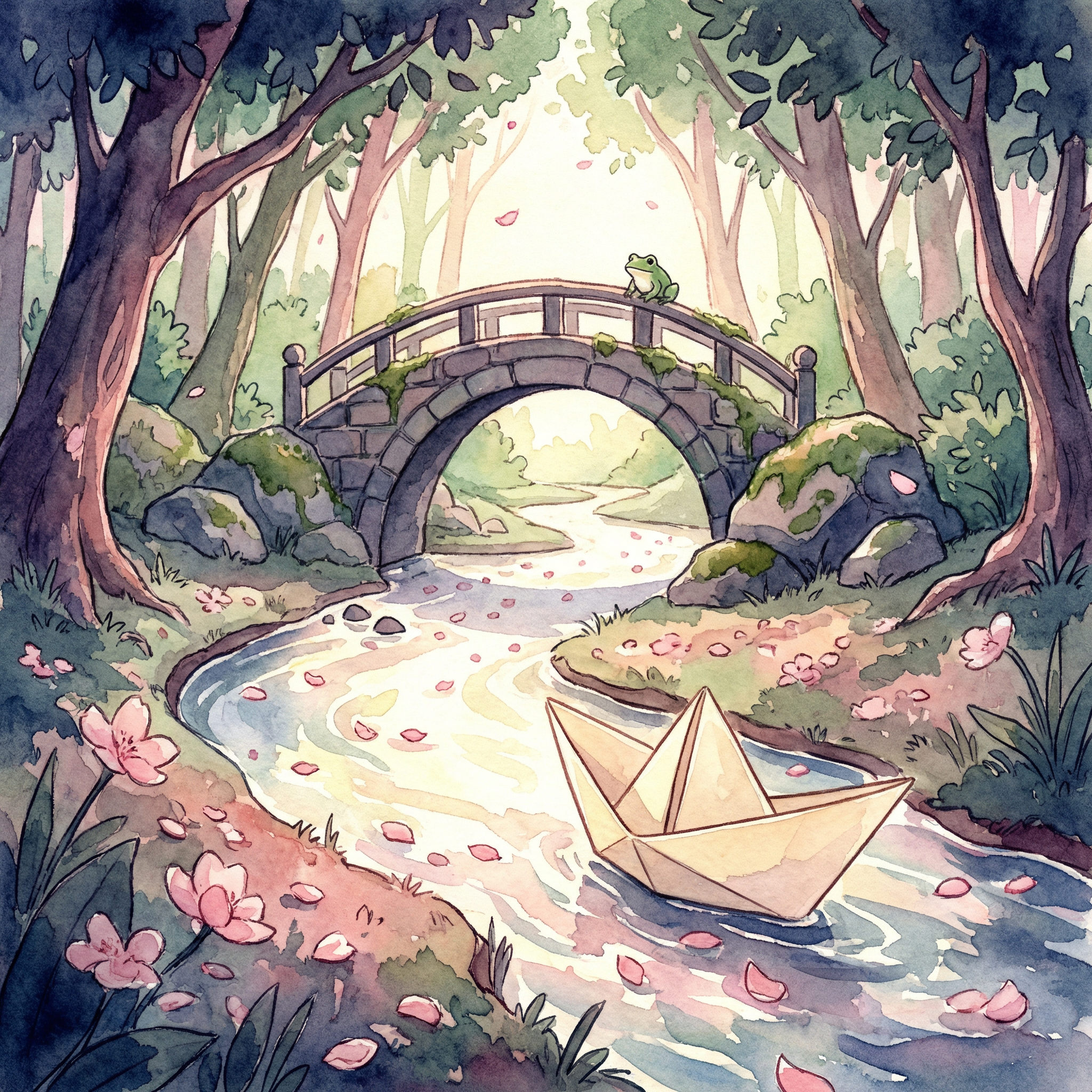
Watercolor animation style: A paper boat floats down a stream through a forest. Cherry blossom petals land on the water surface. The boat drifts under a small stone bridge where a frog watches from the railing. As the boat exits the bridge's shadow, the camera tilts up to reveal a vast mountain range painted in soft washes of indigo and rose. Gentle piano melody implied by the pacing.
Text-to-Video
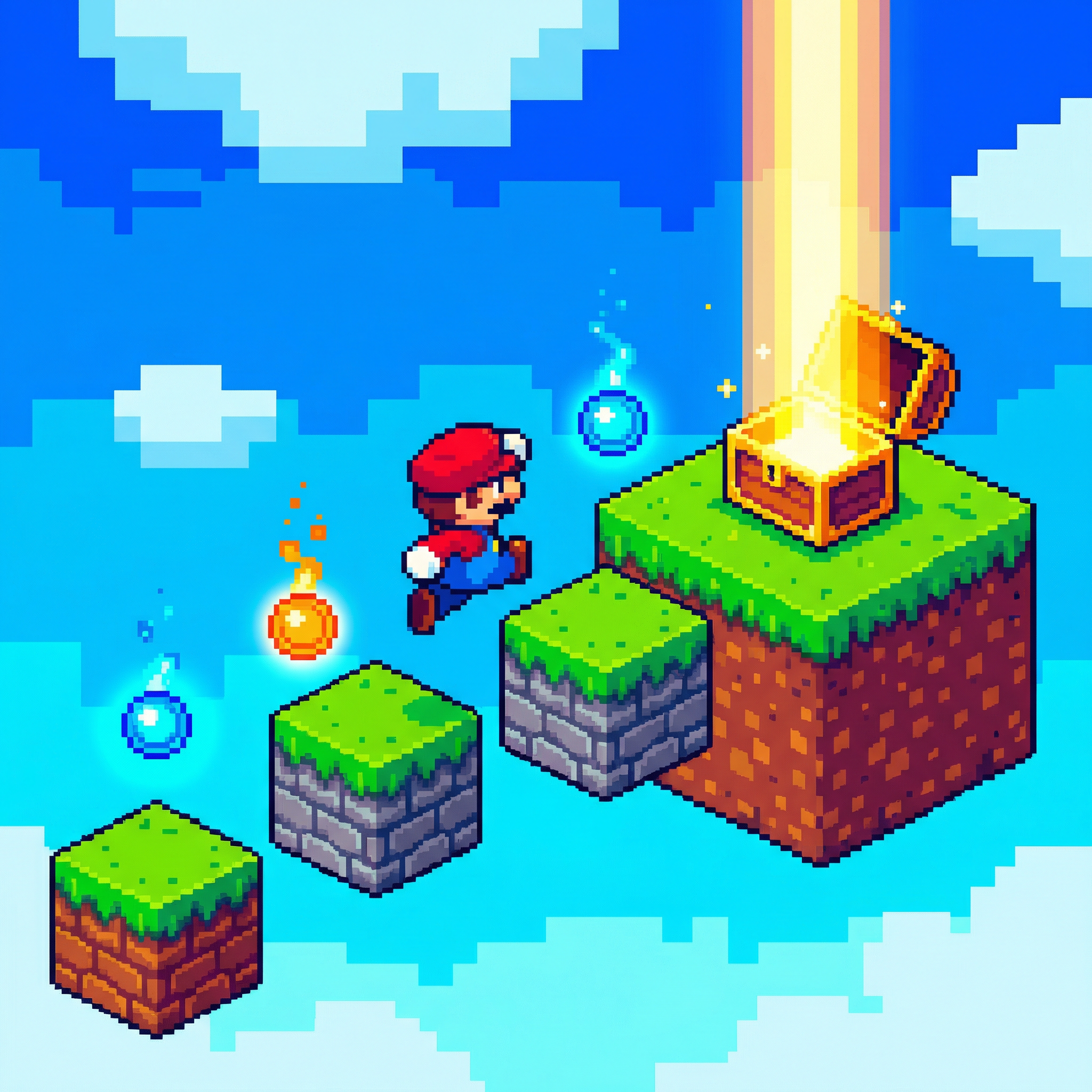
3D isometric pixel art: A tiny character in a red cap runs across a floating island, jumping between platforms made of stacked cubes. They collect glowing orbs that leave particle trails. The camera follows from a fixed isometric angle as the character reaches the final platform and a treasure chest opens, releasing a column of golden light. Chiptunecore energy, bright saturated palette, crisp shadows.
Prompt Engineering Quick Reference
Goal
Technique
More cinematic output
Specify lens type (anamorphic, 35mm), film stock (Kodak Portra, Fuji Velvia), and color grade
Better motion coherence
Use temporal sequencing words: "first," "then," "as X happens, Y begins"
Precise text rendering
Keep text short (3 to 5 words), specify position and entrance style, use common vocabulary
Character consistency
Upload 2 to 3 angles of the same character and reference all images explicitly
Brand integration
Upload logo as a separate image, reference it by number, specify persistent placement ("bottom-right corner throughout")
Smooth transitions
Describe the transitional moment explicitly: "dissolve," "blur transition," "particle burst leading into"
Realistic lip-sync
Upload character image + audio reference, write out exact dialogue in the prompt